Currently, Facebook requires manual RTMP setup for Group broadcasting. Follow the instructions below to connect LiveSure to your Facebook Group.
Step 1: Get RTMP Credentials from Facebook
Go to your Facebook Group and click "Write something..." to create a post.
Click the Three Dots (...) and select Live Video.
Select Streaming software as your video source in the Live Producer dashboard.
In the Stream key setup, expand Advanced settings.
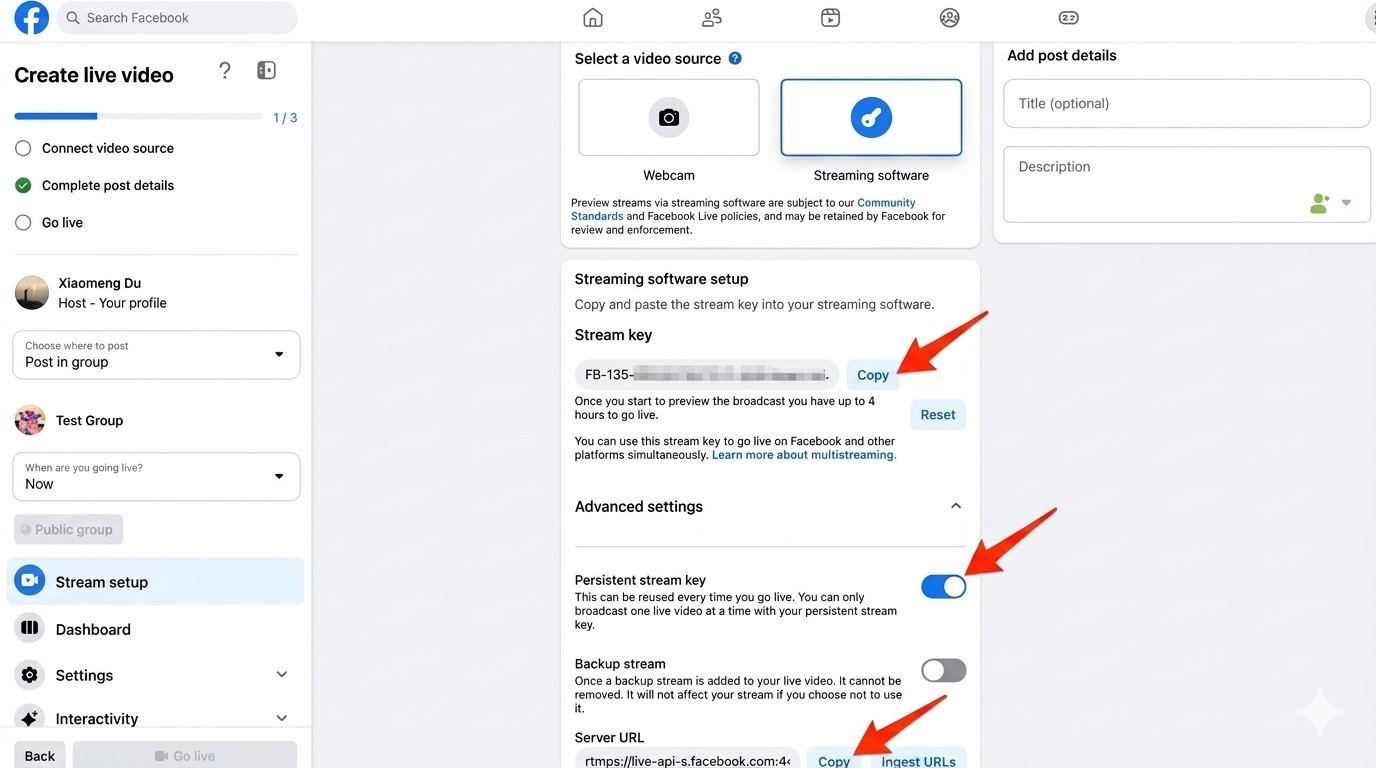
* In the screenshot above, ensure "Persistent Stream Key" is toggled ON.
* Highly Recommended: Toggle ON "Persistent Stream Key" in Advanced Settings.
Copy the Server URL and Stream Key.
Benefits
Enable "Persistent Stream Key": Toggle this ON in Advanced Settings. This allows you to use the same URL and Key for all future broadcasts, so you don't have to re-configure LiveSure next time.
Step 2: Configure in LiveSure Destinations
Open LiveSure Destinations and click Add Destination.
Choose Custom RTMP as the destination type.
Paste the credentials:
- Paste Server URL into the "RTMP URL" field.
- Paste Stream Key into the "Stream Key" field.
Save settings and Start Streaming from LiveSure.