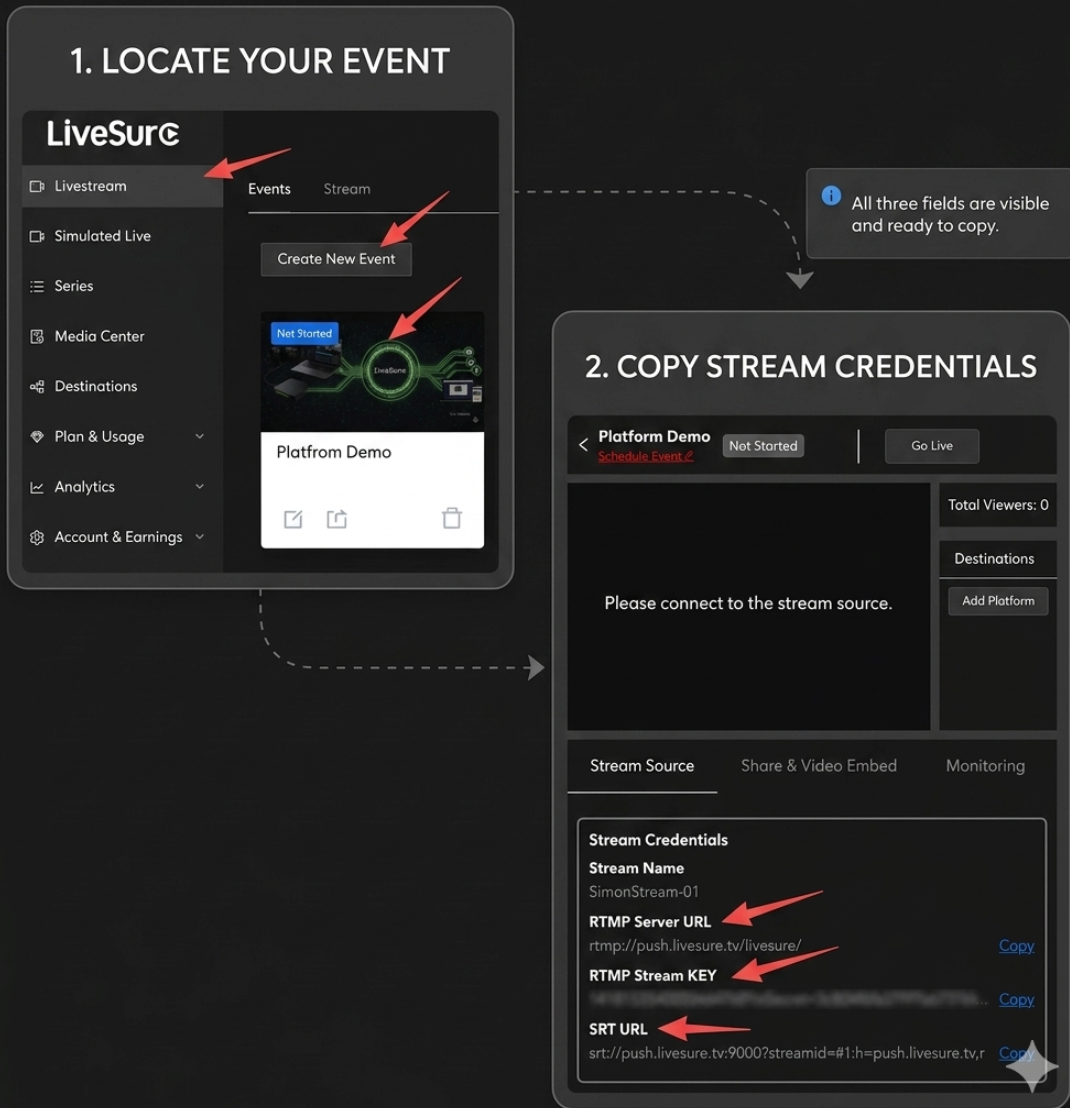
LiveSure Event Console: Copy your credentials here
Follow this detailed guide to connect your OBS Studio to LiveSure using the high-stability SRT protocol or standard RTMP.
Before opening OBS, prepare your stream address:
SRT URL or RTMP Server URL.
LiveSure Event Console: Copy your credentials here
Now, let's wire up OBS. Open OBS Studio and follow these precise steps:
A. Open Stream Settings:
Click Settings in the bottom-right "Controls" panel, then select Stream from the left-hand menu.
B. Set Service Type:
Change the Service dropdown menu to Custom....
C. Enter Connection Details:
SRT URL into Server. Leave Stream Key empty.RTMP Server URL into Server and RTMP Stream KEY into Stream Key.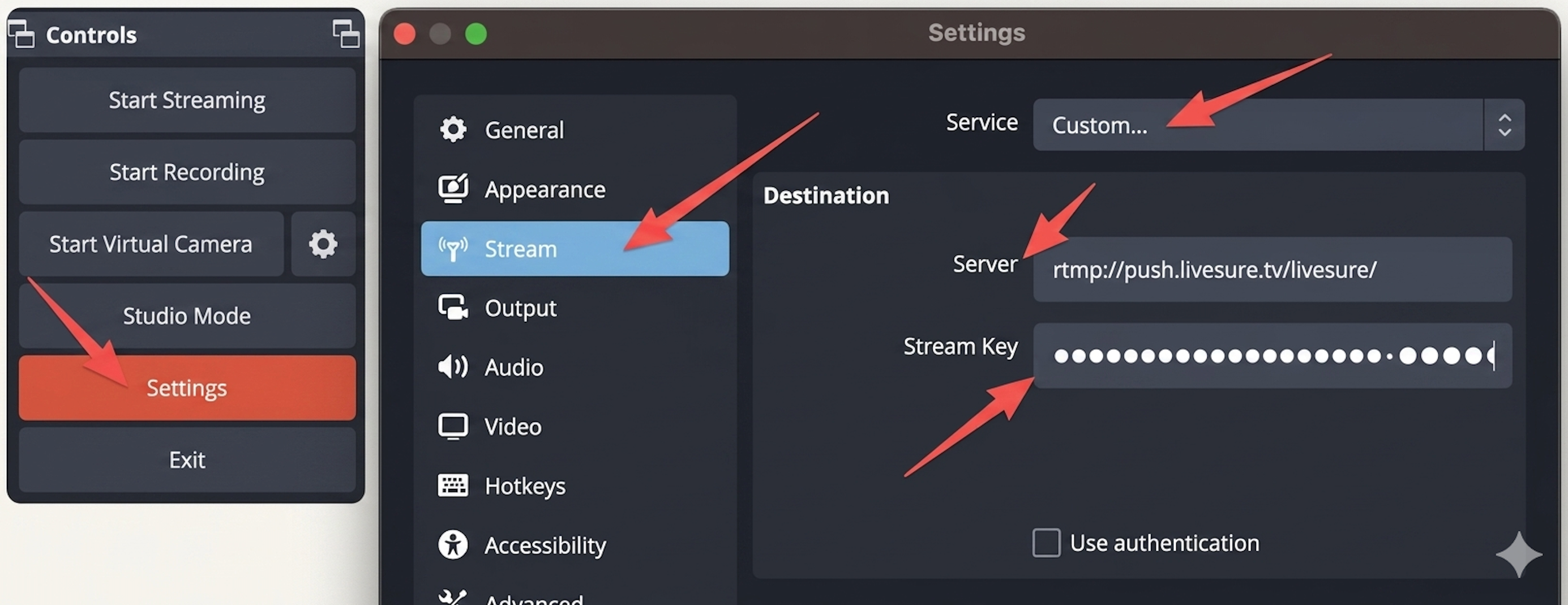
OBS Settings: Select Custom Service and paste the URL
Before hitting "Start Streaming", you need to tell OBS what to capture. In the Sources panel at the bottom, click the [+] icon:
Display Capture. This will stream everything visible on your monitor.Browser. Enter the URL of the webpage you want to show. You can interact with it by right-clicking the source and choosing "Interact".Media Source. Browse and select your video file. Tip: Check "Loop" if you want the video to repeat.Video Capture Device to add your camera feed.