This guide explains how to take your pre-recorded videos and use them to simulate a live stream on LiveSure. Follow these steps to set up your pre-recorded content and begin streaming.
1 Log in to your LiveSure dashboard and navigate to Media Center on the left menu.
2 Click Upload Video to upload your media.
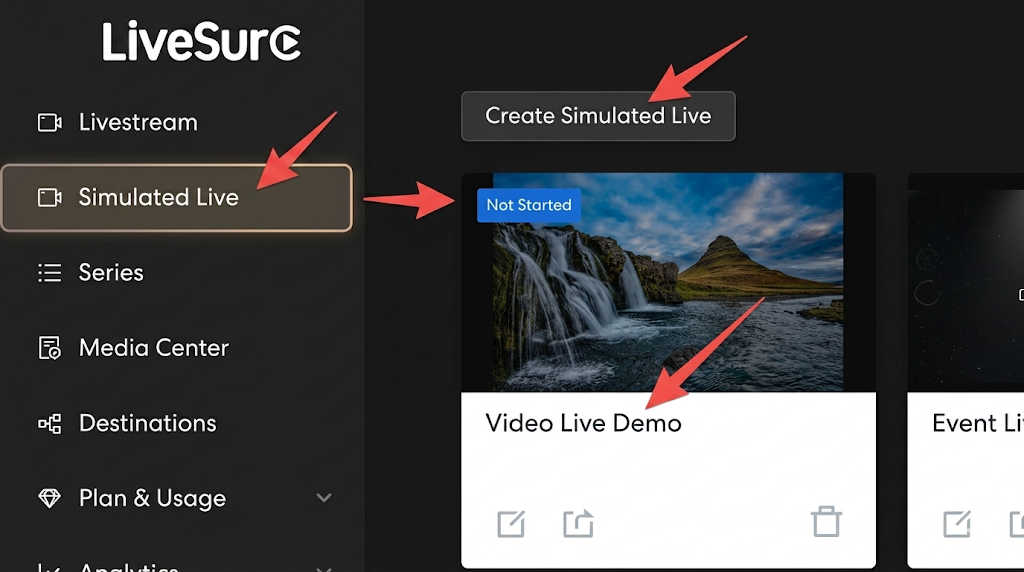
3 Navigate to Simulated Live on the left menu.
4 Click Create Simulated Live to create your event.
5 Click the event card to enter the console.
6 Locate the Stream Video tab at the bottom left. Select up to 5 videos for looping playback.
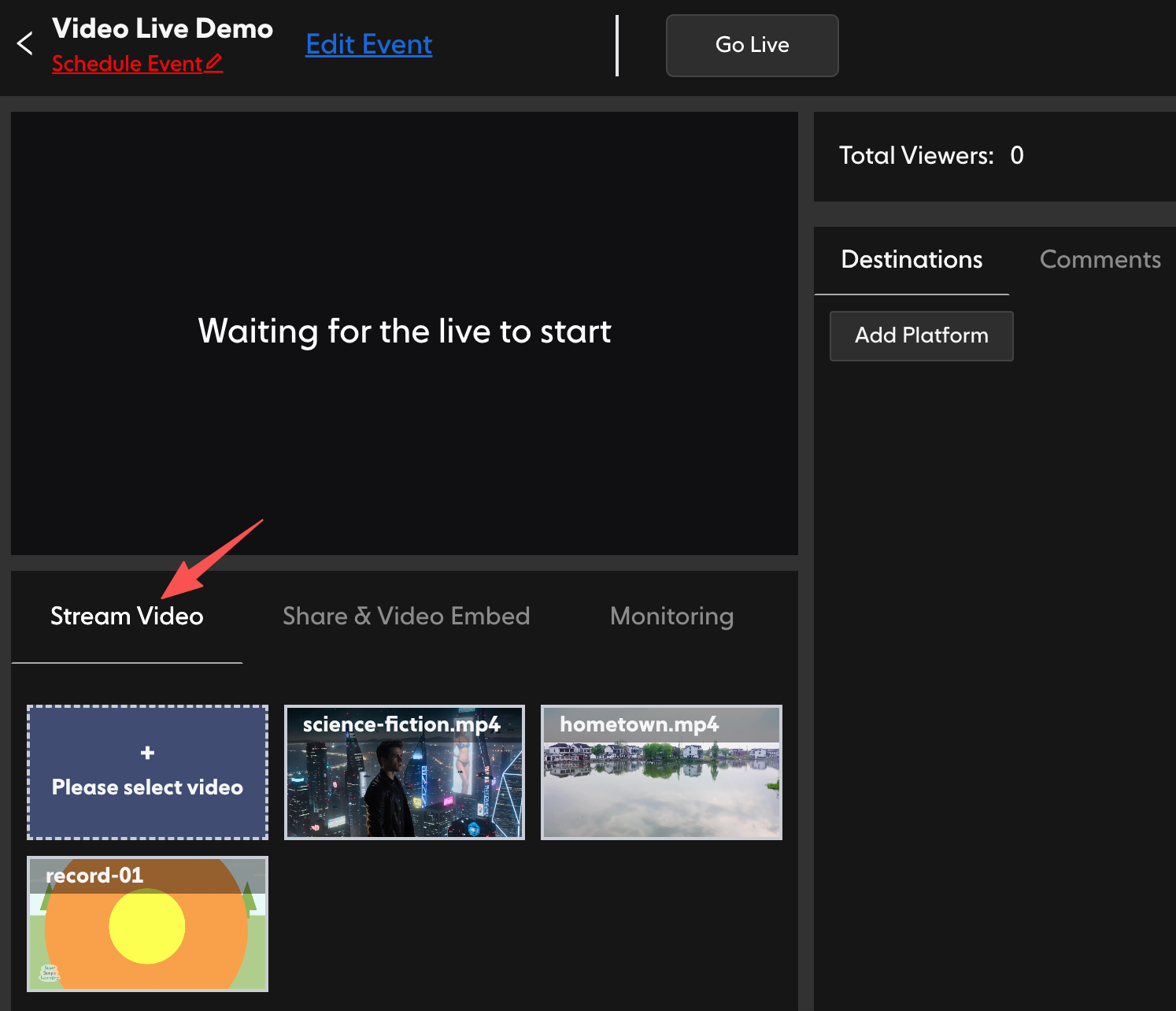
7 Click Go Live in the top menu to start your simulated live stream.
8 Return to your LiveSure Event Console to monitor your stream.