How to Add Facebook as Destination
Open Destinations Sidebar
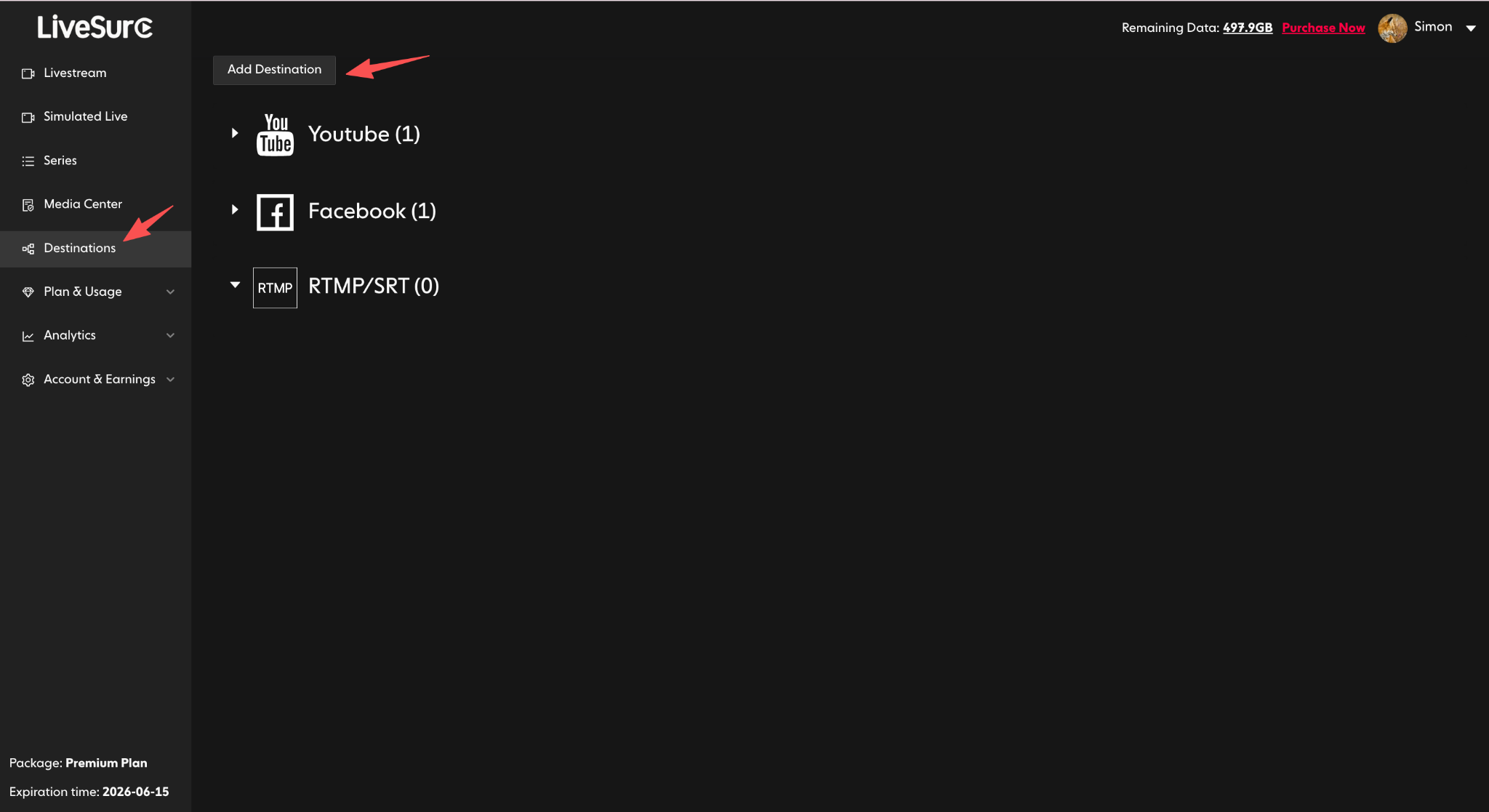
On the LiveSure Dashboard, go to “Destinations” in the left sidebar and click the “Add Destination” button.
Select Facebook
Choose Facebook from the destination list to start the secure connection process.
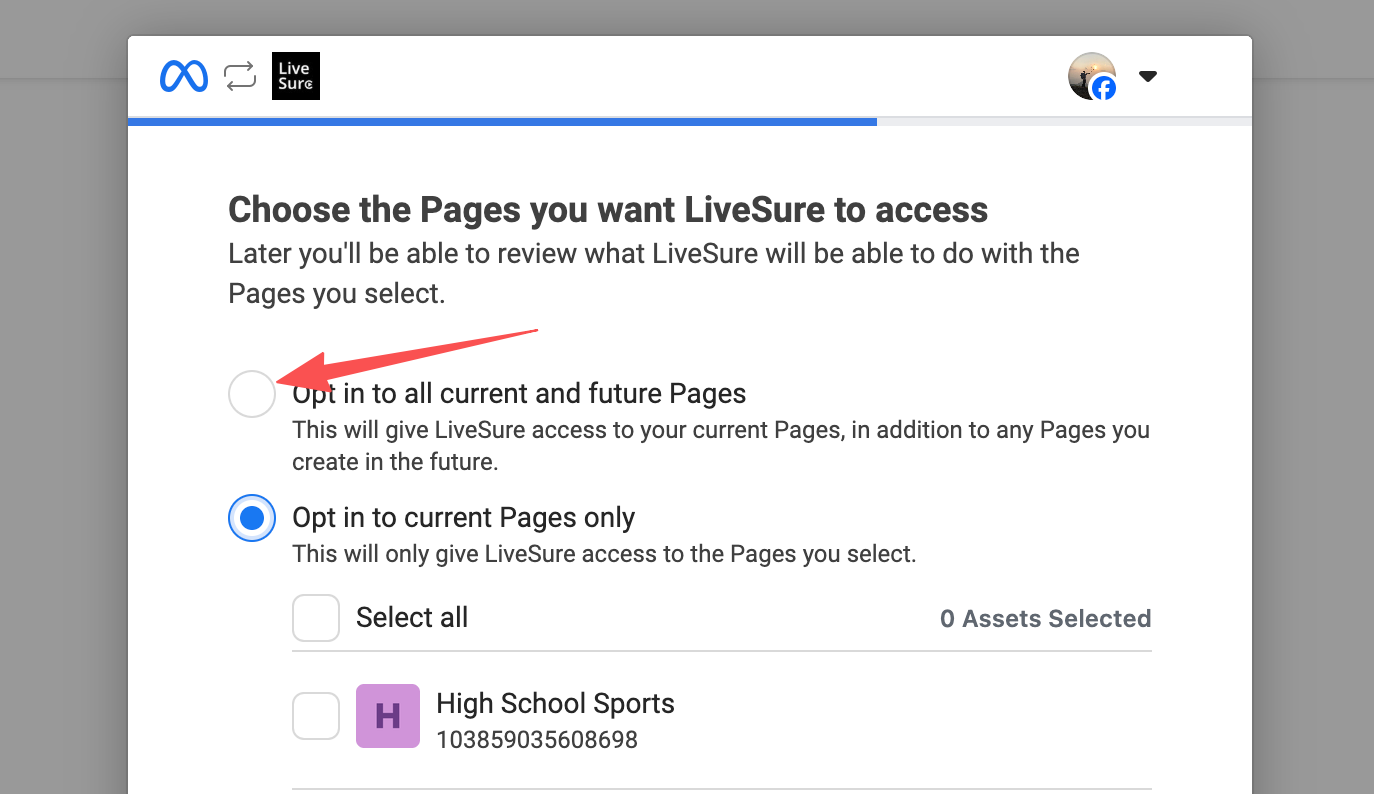
Grant Full Permissions
Click “Authorize Access”. You will be redirected to Facebook. Login and click "Continue as [Your Name]".
Add to Your Event
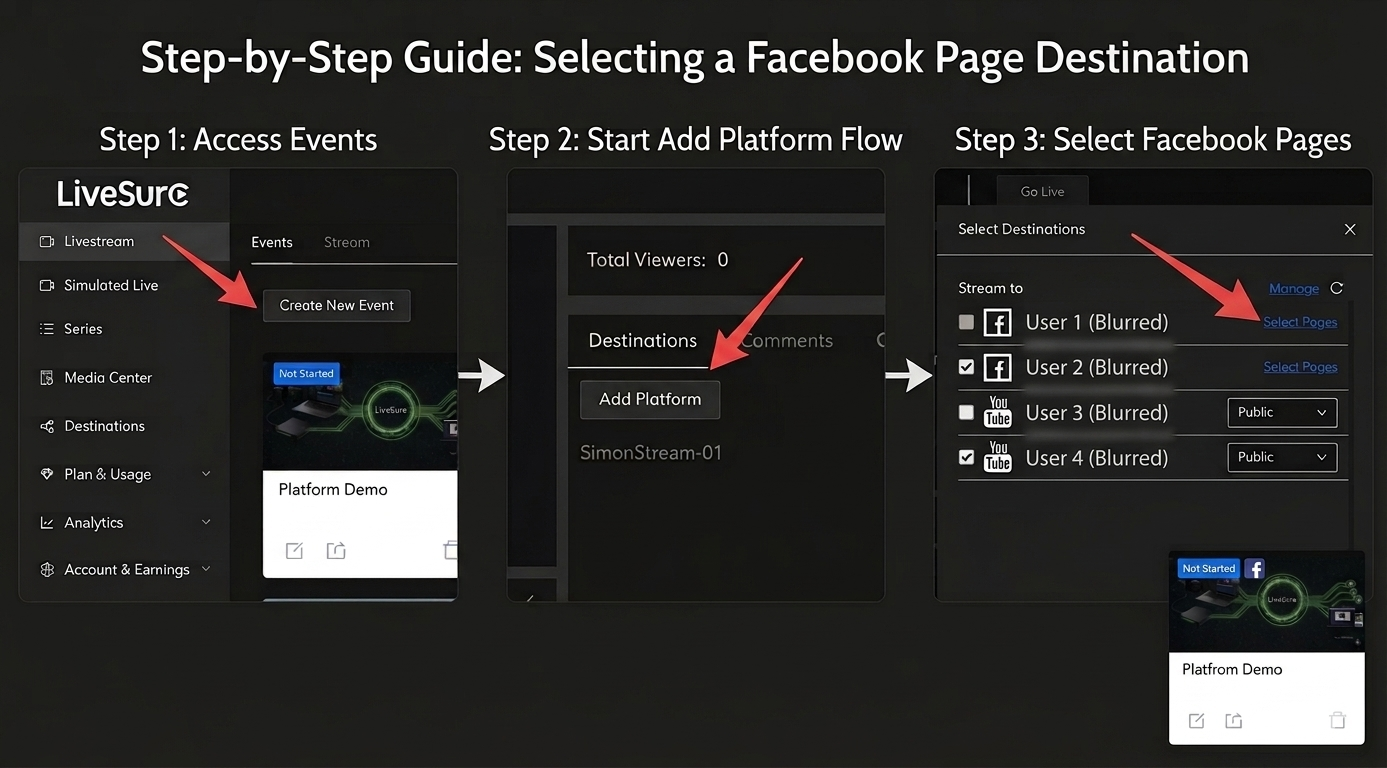
Once connected, go to LiveStream Events or Simulated Live Events. Click “Add Platform” and pick your desired Facebook Page or Profile.
💡 Facebook Troubleshooting
📢 Important Update for Groups
Facebook has officially deprecated Group Live broadcasting via API in 2025. To stream to your Groups, please use the Custom RTMP method.
View Group Live Setup Guide →Missing Pages: If you don't see a specific Page, click "Remove" on the Facebook destination in LiveSure and re-add it, making sure to check All Pages during the setup.